Table of Contents
- Start With the Five Failure Points in Business CCTV Troubleshooting
- Common CCTV Connection Problems and How to Trace Them
- Power, Storage and Firmware Checks Before You Reboot
- When to Call Professional CCTV Repair Services
- The CCTV Maintenance Checklist for Businesses That Prevents Repeat Faults
- Cybersecurity, Alarm Integration and Remote Viewing: Angles Most Guides Miss
- Frequently Asked Questions
Last Updated: September 10, 2026
Start With the Five Failure Points in Business CCTV Troubleshooting
Most commercial CCTV failures are not mysteries. According to Videoloft’s analysis of enterprise NVR challenges, businesses still battle the same core problems in 2026: limited remote access, hardware failures, and systems that cannot scale. This cctv system troubleshooting for businesses guide from Morayfield Locksmiths covers how to diagnose each one before you waste money on replacement gear.
Effective cctv system troubleshooting for businesses starts with recognising the failure category. Ring and Ping’s 2026 troubleshooting data identifies five primary fault areas: recording failures, cameras going dark, night vision malfunctions, signal dropouts, and connectivity issues.
Recording Failures
The recorder is not capturing footage even though the system appears powered. Check the hard drive status first, then the recording schedule. A full or corrupted drive is the most common culprit.
Cameras Going Dark
A camera showing no image usually means power loss or a failed connection. Test the power supply at the camera end, not just at the recorder.
Night Vision Malfunctions
Infrared LEDs degrade over time. If daytime footage is fine but night footage is black, the IR board or its power feed is the likely fault.
Signal Dropouts and Connectivity Issues
Intermittent signal loss points to cable damage, interference, or bandwidth limits on the network.
Common CCTV Connection Problems and How to Trace Them
Connection faults account for a large share of commercial camera downtime, and the temptation is always to swap components until something works. A structured trace is faster, cheaper and leaves you with a documented fault history you can hand to a technician if the problem recurs. Work from the camera backwards to the recorder, testing one layer at a time.
Cable Integrity and Connector Checks
Inspect coaxial cable and Cat6 runs for kinks, corrosion, rodent damage and water ingress. A single compromised connector can take down an entire camera channel, and on long outdoor runs the fault is often at the joint rather than the camera.
- Test continuity with a cable tester before assuming the camera has failed.
- Check BNC connectors on analogue systems for a pulled centre pin, a common cause of a camera that works until the cable is touched.
- On Cat6 runs, confirm the RJ45 termination follows the correct wiring standard (T568A or T568B) and that the pair is not split across the wrong pins.
- Look for cable runs sharing a conduit with mains power, which introduces interference and intermittent signal loss.
Network, IP Address and Port Forwarding Faults
For IP camera systems, verify the IP address, subnet mask, gateway and DNS settings. An IP conflict, two devices holding the same address, will knock a camera offline, often after a router reboot or a DHCP lease renewal. Assign static IPs or DHCP reservations to every camera, recorder and switch port.
Check the following in order:
- Confirm the camera responds to a ping from the recorder or a laptop on the same VLAN.
- Confirm the PoE switch is delivering adequate power on that port, most fixed dome cameras draw 6-12 W, while PTZ units can exceed 25 W and may exceed a switch’s per-port budget.
- Check port forwarding rules on the router if remote access has stopped working, and confirm the WAN IP has not changed (a dynamic IP will break port-forward rules silently).
- Verify the recorder’s network settings have not reverted after a firmware update.
Never reboot the recorder before checking power and storage. A power cycle wipes diagnostic evidence and can corrupt a failing hard drive, turning a recoverable fault into permanent data loss.
Bandwidth and Switch Capacity
On larger commercial systems, intermittent dropouts often trace to bandwidth rather than a broken cable. A single 4K camera can consume 8-12 Mbps, and a 16-camera system can saturate a 100 Mbps switch uplink (axis.com). Check the switch’s uplink utilisation during peak hours, confirm the recorder’s NIC is negotiating at gigabit speed, and separate camera traffic from general office traffic on its own VLAN where possible.
Signal Dropouts on Analogue Systems
Analogue DVR installations have their own failure modes. Ground loops between cameras and the recorder produce rolling bars or a humming image. A failing power supply on a multi-camera PSU shows up as cameras dropping out one at a time as the supply heats up. If several channels fail together, suspect the shared power supply or the recorder’s capture card before the cameras themselves.
Power, Storage and Firmware Checks Before You Reboot
Power and storage faults sit behind a large proportion of “dead” camera reports. Work through these before reaching for the reset button.
Power Supply and Voltage Drop
Measure voltage at the camera, not the power supply. Voltage drop over long cable runs is a common cause of cameras that flicker or fail intermittently, particularly on older analogue DVR installations.
Hard Drive and Storage Capacity Errors
A failing hard drive produces recording gaps, timestamp errors, and data corruption. Check drive health in the recorder menu and replace drives showing reallocated sectors promptly.
Firmware and Software Updates
Outdated firmware causes authentication failures and compatibility problems with newer cameras. Check the manufacturer’s release notes before updating, and never interrupt a firmware write.
When to Call Professional CCTV Repair Services
Some faults sit beyond safe in-house troubleshooting. Persistent video loss after cable and power checks, recorder hardware failure, or any fault on a system tied to alarm and access control should go to a qualified technician.
For businesses across the Moreton Bay region, Morayfield Locksmiths provides professional CCTV repair services, from single-camera faults to full system diagnostics. A failed surveillance system is a security gap, not just an inconvenience. Call us for rapid on-site assessment and honest, upfront pricing.
The CCTV Maintenance Checklist for Businesses That Prevents Repeat Faults
A structured CCTV maintenance checklist for businesses prevents most repeat faults. Loss Prevention Media’s 2026 analysis found that failed surveillance projects usually stem from poor design and planning, not equipment failure. Maintenance closes that gap.
Daily, Weekly and Monthly Tasks
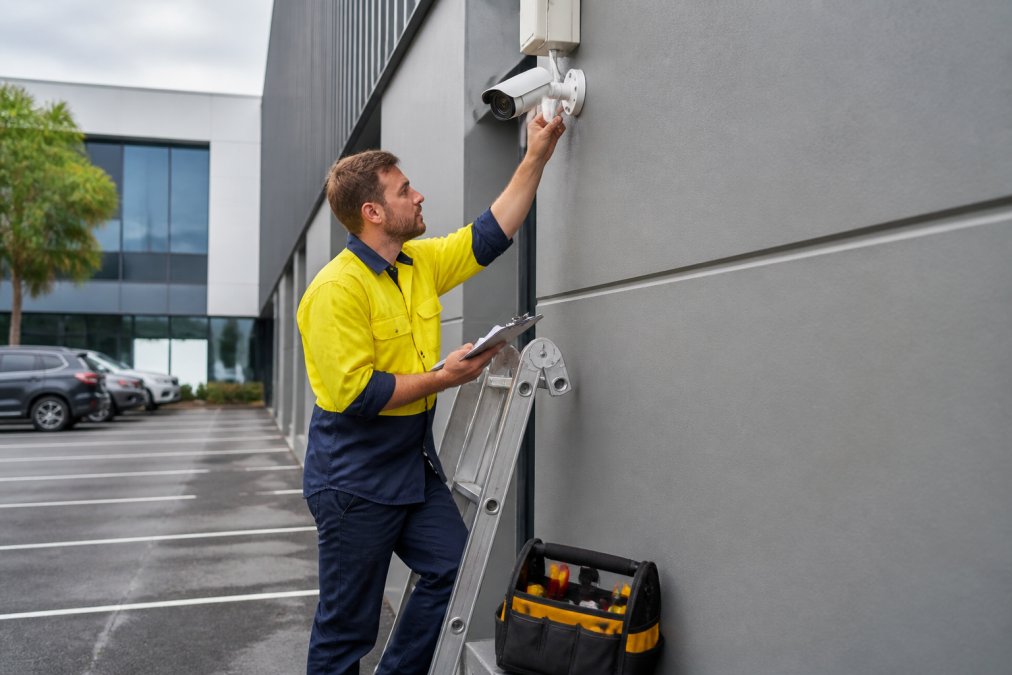
- Daily: confirm all cameras are recording and timestamps are accurate
- Weekly: review motion detection alerts for false triggers or blind spots
- Monthly: inspect connectors, clean camera lenses, and check drive health
- Monthly: verify remote access and mobile app connectivity
Seasonal and Annual Checks
- Quarterly: test night vision and infrared performance after dark
- Quarterly: check for signal interference from new equipment nearby
- Annually: audit storage capacity against retention requirements
- Annually: review firmware versions and update where needed
| Task | Frequency | Typical Fault Caught |
|---|---|---|
| Recording verification | Daily | Storage failure, schedule errors |
| Connector and lens inspection | Monthly | Water ingress, corrosion |
| Night vision test | Quarterly | IR LED degradation |
| Firmware and storage audit | Annually | Authentication faults, capacity shortfalls |
Cybersecurity, Alarm Integration and Remote Viewing: Angles Most Guides Miss
Most troubleshooting guides stop at the camera. The faults that cost businesses the most sit in the network, the integrations and the apps, and they are the ones a generic checklist will never surface.
Cybersecurity Troubleshooting for IP Cameras
Weak credentials and unpatched firmware expose IP cameras to intrusion, and a compromised camera is a security incident, not a technical glitch. Treat the following as a baseline audit, not a one-off task:
- Change every default password on cameras, recorders and switches, and use unique credentials per device.
- Disable unused services, Telnet, FTP, UPnP and any cloud feature you are not actively using.
- Isolate cameras on a separate VLAN with no route to the general office network.
- Apply firmware updates promptly; camera vendors publish security advisories and patched firmware for known vulnerabilities.
- Check the recorder’s user list for accounts you did not create, and review login logs for access from unfamiliar IP addresses.
- Enable HTTPS and disable insecure remote protocols where the hardware supports it.
If a camera is streaming to an unknown destination, or the recorder shows logins from outside your expected IP range, disconnect the device from the network and treat it as a breach until proven otherwise.
Integrating with Alarm and Access Control Systems
When cameras, alarms and access control share a network, a fault in one system can cascade. A camera that stops recording on an alarm trigger is often a network or credential problem, not a camera problem.
- Verify every device holds a static IP or DHCP reservation, and that the integration platform’s device list matches the live network.
- Confirm integration triggers still fire after any network change, firmware update or password rotation.
- Check that the recorder and the alarm panel are on the same time source (NTP), mismatched clocks break event-to-video correlation and make footage useless for incident review.
- Test the full chain end to end: trigger the alarm, confirm the camera records, confirm the access control log shows the event.
Remote Viewing App Configuration
Remote access failures usually trace to port forwarding, dynamic IP changes, or app authentication errors. Confirm the router rules first, then re-authenticate the mobile app. Cloud-based video management systems remove most of this friction, which is why Axis Communications’ 2026 report notes that 38% of businesses now use video systems for operational efficiency, not just security.
Common remote-viewing faults and their fixes:
- App shows ‘device offline’ but the recorder is recording locally, the WAN IP has changed, or the port-forward rule is pointing at the wrong internal address.
- Video loads but stutters, the remote stream is set to main stream rather than sub stream; switch the app to sub stream for mobile viewing.
- Login fails after a password change, the app has cached old credentials; clear the app data and re-add the device.
- Multiple users see different cameras, user permissions on the recorder are misconfigured; audit each account’s camera access.
Where the hardware supports it, prefer a cloud or P2P connection over manual port forwarding. It removes the dynamic-IP problem entirely and closes the inbound port that attackers scan for.
Frequently Asked Questions
What are the most common causes of CCTV signal loss in a business system?
The most frequent causes are cable damage or loose connectors, power supply issues such as voltage drop, network faults like incorrect IP addresses or port forwarding errors, and firmware bugs. In 2026, troubleshooting guides identified five primary areas of concern: recording failures, cameras going dark, night vision malfunctions, signal dropouts on DVR/NVR units, and general connectivity issues. Start by checking power and cable integrity before moving to network settings.
How often should a business perform CCTV system maintenance?
A practical schedule is a visual check weekly, a full system test monthly, and a professional service annually. The CCTV maintenance checklist for businesses should include cleaning lenses, testing night vision, verifying recording playback, checking hard drive health, and updating firmware. Regular maintenance prevents the common CCTV connection problems that cause downtime, and it keeps your system compliant with workplace surveillance obligations.
When should you call a professional for CCTV repairs?
Call a professional when faults persist after basic checks like power cycling, cable reseating, and firmware updates. Also call if you see water damage, chewed cables, repeated hard drive failures, or if the system is integrated with alarms or access control. Professional CCTV repair services can diagnose network architecture issues, cybersecurity vulnerabilities, and voltage problems that are unsafe or complex to handle yourself.
Can I troubleshoot my business CCTV system myself, or do I need a licensed technician?
You can safely handle basic checks such as rebooting the NVR/DVR, verifying power at the outlet, checking cable connections, and confirming remote access settings. However, work involving mains voltage, roof access, or network reconfiguration should be done by a licensed technician. If your system is under warranty, DIY repairs may void it, so check first.